
Understanding PMP Analytics #
Requires Preferred license.
PetMatchPro tracks visitor interactions with your animal listings, giving you insight into how people browse and engage with animals on your site. This data helps you optimize your pages to increase adoptions.
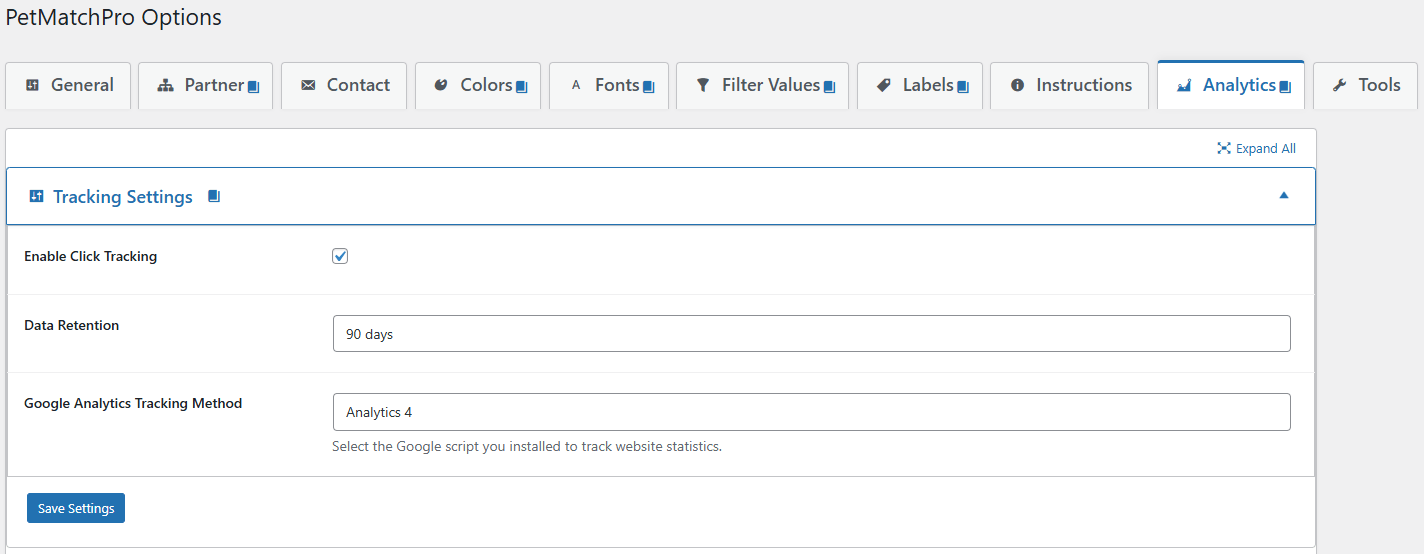
Enabling Analytics #
- Go to PetMatchPro > Analytics tab (visible with Preferred license).
- Enable Analytics Tracking.
- Click Apply Changes.
What Events Are Tracked #
PetMatchPro tracks these visitor interactions automatically once analytics is enabled:
| Event Type | What It Captures |
|---|---|
| Impressions | Which animals the visitor actually saw on the page (dwell-gated, see below) |
| Detail Views | When a visitor clicks an animal to view its full profile, including how they arrived (search, similar animals, direct link, social share, external) |
| Action Clicks | Clicks on action buttons – email, phone, directions, adoption application, foster application, donation, meet & greet, volunteer, sponsor, video play, share, poster print. Eight of these (email, phone, adoption_app, foster_app, meet_greet, donation, sponsor, volunteer) are classified as conversions for the funnel and conversion-rate widgets; the other four (video_play, share, poster, directions) are reported as actions but excluded from conversion metrics. See Conversion vs Engagement Actions. |
What Counts as an Impression (8.7.0+) #
An impression is recorded when a visitor sees an animal card. Specifically:
- The card must enter the viewport with at least 50% of its area visible.
- It must remain visible for at least 500 milliseconds (the dwell threshold). This filters out fast-scroll noise.
- Each animal counts at most once per page session.
- Across page loads in the same browser session, the dashboard counts each unique (visitor session, animal) pair once per day. Returning to the same search page does not double-count the cards the visitor already saw – the dashboard reads from a daily summary table that aggregates by session, so revisits are deduplicated automatically.
Detail views work the same way: a visitor reloading the same animal’s profile in the same session counts once, not twice. Action clicks (email, phone, adopt application, etc.) and shares are NOT deduplicated – each click is a discrete signal of intent and gets counted every time it fires.
This is a significant change from 8.6.x and earlier, where every animal card rendered to the page counted as an impression – even cards the visitor never scrolled to. See Interpreting Position Impact for what this change means for comparing pre- and post-8.7.0 data.
How impressions are counted (why the number looks large) #
On the Analytics screen this number is labeled Card Impressions. It counts each animal card shown to each visitor session, counted once per day – not pageviews. One visitor who scrolls a search page with 30 animals generates up to 30 card impressions in a single visit.
Because of this, Card Impressions is expected to be much larger than pageviews or visits, often by a factor of ten or more on a busy shelter site. A trailing-30-day figure in the millions is normal and correct for a high-traffic shelter – it is not a bug or double-counting. This mirrors how advertising platforms report impressions: the impression count always dwarfs clicks because it measures how many times something was seen, not how many people visited.
Read Card Impressions as the top of your funnel (how much your listings were seen), then look at Detail Views, Action Clicks, and CTR below it to see how that exposure converted into interest.
Data Captured Per Event #
Each event includes contextual data to help you understand what happened:
- Animal ID and Name – Which animal was interacted with
- Species – Dog, Cat, etc.
- Method Type – Adopt, lost, found, featured, preferred
- Position – Where the animal appeared in search results (e.g., position 3 of 12)
- Source – How the visitor arrived: search results, similar animals section, direct link, social share, or external referral
- Page URL – The page where the interaction occurred
- Enrichment Data – Whether the animal has a video, icon count, and overlay count
Metric Definitions #
| Metric | What It Means | Where It Appears |
|---|---|---|
| Impressions | Number of times an animal card was actually viewed (dwell-gated, see above) | Dashboard, Top Animals, Position Impact |
| Detail Views | Visitor clicked into an animal’s full profile page | Dashboard, Top Animals |
| Actions | Clicks on email / phone / directions / adoption application / foster application / donate / meet & greet / volunteer / sponsor / video play | Dashboard, Action Breakdown |
| Search CTR | Detail Views divided by Impressions, expressed as a percentage. “Of the people who saw this animal in search, how many clicked through?” | Dashboard summary card |
| Engagement Rate | Actions divided by Detail Views. “Of the people who reached the detail page, how many took an adoption-relevant action?” | Dashboard summary card |
| Source Breakdown | How visitors arrived at the detail page – search, similar-animals grid, direct, social share, external | Dashboard footer |
Insight Widgets and the Nightly Summary (8.14) #
The deeper insight widgets – Peak Engagement Times, Source Conversion, Position Impact, Time to Action, Multi-Action Visitors, and Repeat Visitor Conversion – read from a nightly session-summary table instead of scanning raw events on every page load. This keeps them fast even on sites with millions of events. Three things follow from that design:
- Data is current through yesterday. These widgets reflect activity up to the end of yesterday, not the last few minutes of today, because the summary is built overnight. Your headline stats (Card Impressions, Sessions, Views, Action Clicks) still update through today.
- Returning Visitor Conversion can count true cross-day returns (8.19.0). By default this widget counts same-day returns (more than one session on the same day). If you turn on Track Returning Visitors (cross-day), it switches to genuine new-vs-returning detection across days once enough history accumulates. See Returning Visitors (New vs Returning, across days) below.
- Time to Action is shown as an approximate range. Rather than an exact median to the second, the timing is grouped into buckets (under 30 seconds, 30-60 seconds, 1-2 minutes, 2-5 minutes, 5 minutes or more) and the median/average are derived from those buckets. This is accurate enough to tell whether your visitors act quickly or deliberate, without keeping raw per-event data forever.
Returning Visitors (New vs Returning, across days) #
Out of the box, the Returning Visitor Conversion widget uses a same-day estimate: a “returning” visitor is one who started more than one session on the same day. That is a useful interest signal, but it cannot tell you whether someone came back on a different day before adopting – and IP-based guesses are unreliable because shared and carrier networks collapse many people into one address.
Version 8.19.0 adds true cross-day detection, off by default. Enable it under Analytics → Tracking Settings → Track Returning Visitors (cross-day) (Enable Tracking must also be on). When enabled, the plugin stores a small first-party marker (a random id in the pmp_visitor_id cookie) so a browser is recognizable on a later visit. The server uses it only to decide “new today” versus “seen on an earlier day,” then counts new-vs-returning visitors and how many of each converted.
- It builds forward only. The marker cannot reclassify days before you turned it on, so on day one everyone looks new. Until about 30 days of history accumulate, the widget keeps showing the same-day estimate and displays a note like “Returning-visitor history is building – 12 of 30 days collected.” After the floor is met it switches automatically to true cross-day returning, and the wording changes to “Returning visitors (across days).”
- It stores no personal data. The marker is an opaque random id – no name, email, or IP – kept first-party and never sold or shared. See Privacy and Data Retention for exactly what it stores, its lifetime, and ready-to-paste privacy-policy copy.
- It is safe to turn off. Disabling it stops writing the marker; the widget simply returns to the same-day estimate. No data is lost either way.
How Tracking Works #
PetMatchPro uses lightweight JavaScript that runs in the visitor’s browser. The events it captures take a queue-and-flush path to the dashboard so visitors never wait on database writes:
- Capture – JavaScript on each page collects impressions as cards enter the viewport.
- Beacon – Batches are sent to the server in the background so visitors never wait. As of 8.17.0, impression batches post to a dedicated fast ingest endpoint that records them before the rest of WordPress and your other plugins load – roughly ten to twenty times less server work per beacon, which is what keeps a high-traffic site responsive during a media spike. If that endpoint is ever unavailable, beacons automatically fall back to the standard path with no loss of data. See Off-Bootstrap Impression Ingest.
- Queue – The server appends incoming batches to an in-database queue and returns immediately.
- Drain – A WordPress scheduled task (WP-Cron) drains the queue once per minute, writing all buffered events into the raw events table in a single bulk insert.
- Roll up – A second scheduled task runs every 5 minutes, aggregating today’s raw events into a daily summary table by date + event type + method type + animal + species + source + action type. A third nightly task (3 AM site time) finalizes yesterday’s summary.
- Read – The dashboard queries the daily summary table, not the raw events table. Rendering the dashboard for a 90-day window touches at most 90 days of pre-aggregated rows instead of grouping millions of raw events.
The dashboard is therefore up to ~5 minutes behind real time on today’s data and stable on closed days. If you need a fresher view, the Flush Queue Now and Rebuild Daily Summaries buttons on the Tools tab let operators pull the latest data on demand. See Queue Health and Tools.
Why a separate summary table? #
Without it, the dashboard had to GROUP BY across every raw event row in the requested date window on every page load. On a busy shelter site, that meant hundreds of thousands of rows per dashboard render, and the page started timing out after just a few weeks of data collection. The summary table reduces the same query to ~90 indexed rows for a 90-day window. The dashboard now loads in well under a second regardless of how long the site has been collecting data.
Dashboard Filters #
The dashboard offers two filters at the top:
- Date range – Last 7 / 30 / 90 / 365 days, or “All time”.
- Method type – Adopt, Lost, Found, Featured, or All. Useful for shelters that want to focus on one program at a time.
Interpreting Trends #
A few patterns to watch for:
- High impressions but low detail views – Card design or photography may not be compelling. Visitors see the cards but do not click in.
- High detail views but low actions – The detail page is not converting interest into next-step behavior. Check call-to-action button placement and labeling.
- Top-position animals dominating impressions – Expected behavior; visitors scroll less than you think. See Position Impact for how to use this signal.
- Sudden drop in all metrics – Check the Queue Health card. If “Last flush” shows a long age with the “Cron may be broken” badge, no data is being written. See the cron requirement guide.
SEO Features #
The Analytics tab also includes SEO configuration options (all Preferred tier):
- SEO Enabled – Turn on SEO enhancements
- Pretty URLs – Clean, readable URLs for animal detail pages
- Open Graph Images – Social sharing preview images
- Meta Templates – Custom meta description template ({name} {species} {breed} {shelter})
- Dynamic SEO Titles – Per-method browser/SEO title templates (see below)
- JSON-LD Structured Data – Help search engines understand your animal listings
- XML Sitemap – Automatic sitemap generation for animal pages
Dynamic SEO Titles #
Each animal detail page can render a keyword-rich, per-animal title in the
browser tab and in search results, for example:
Buddy - 2-Year-Old Rescue Dog for Adoption in Clermont County, Ohio
You set one SEO Title Template per method type your shelter
system supports (Adopt, Lost, Found, List, Preferred). Only the supported method
types appear: RescueGroups shows Adopt only; PetPoint shows Adopt, Lost, Found,
and List; AnimalsFirst shows Adopt, Lost, Found, and Preferred. Leave a field
blank to use its built-in default.
Every template field supports all six tokens:
{name}– the animal’s name (or a “Lost Cat” / “Found Dog” fallback for strays){age}– a full age phrase such as “2-Year-Old” or “5-Month-Old” (blank when unknown){species}– e.g. Dog, Cat{breed}– the primary breed{location}– the Shelter Location for adoptable animals; the per-animal location for lost/found{shelter}– your WordPress site name (Settings > General)
Default templates:
- Adopt / List / Preferred:
{name} - {age} Rescue {species} for Adoption in {location} - Lost:
{name} - Lost {species} in {location} - Found:
Found {species} in {location}
Empty tokens degrade gracefully – there is never a “Not Defined”, a dangling
“in”, or a stray dash. An adoptable animal with no age and no location shown
simply reads “Buddy – Rescue Dog for Adoption”.
This title also drives og:title and twitter:title, so
it improves your Facebook, LinkedIn, and X share cards at the same time. The
feature works with Yoast, Rank Math, All in One SEO, SEOPress, and with no SEO
plugin at all.
Shelter Location #
The Shelter Location field supplies the {location}
token for adoptable-animal titles (Adopt, List, Preferred), e.g.
“Clermont County, Ohio”. Lost and found titles ignore this field and use each
animal’s own location from the API.
Dynamic SEO Titles and Shelter Location are Preferred-tier features.
Next Steps #
- Leveraging Analytics – Use data to improve adoption outcomes (includes Interpreting Position Impact)
- WP-Cron Requirement – What PetMatchPro needs from your host
- Queue Health and Tools – Reading the health card and using diagnostic buttons
- Off-Bootstrap Impression Ingest – How impression beacons stay fast under high traffic (8.17.0+)
- Privacy and Data Retention – What is stored, what is not
- GA4 Configuration – Set up Google Analytics 4 for PetMatchPro events
- GTM Setup – Configure Google Tag Manager


