
Color Customization #
PetMatchPro lets you customize the color scheme of your search and detail pages to match your organization’s branding. Colors are configured through the admin settings and applied across all templates.
Accessing Color Settings #
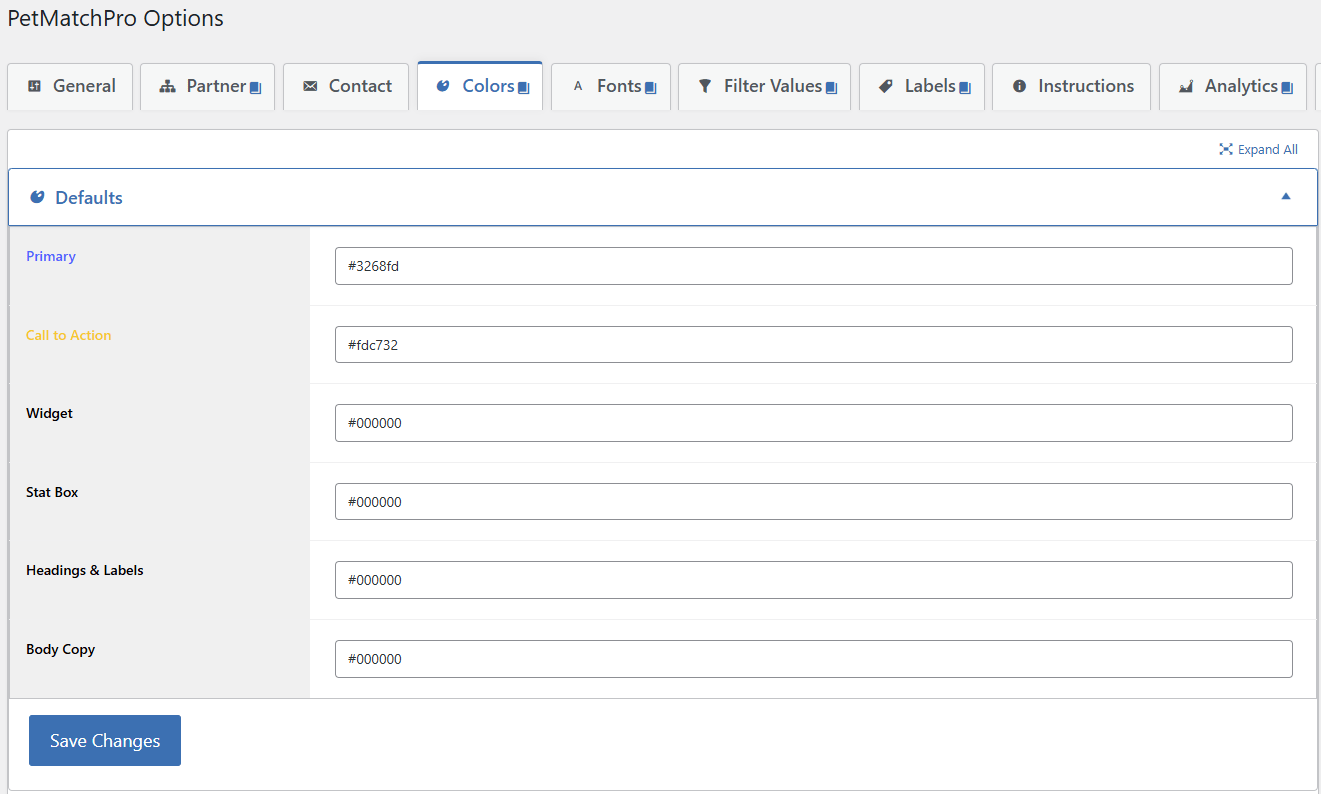
- Go to PetMatchPro > Colors tab in the admin settings.
- Enter color values for the elements you want to customize. Hex (
#024463), named colors (red,transparent), and functional notations (rgb(...),rgba(...),hsl(...),hsla(...)) are all accepted. - Click Save Colors.
Available Color Settings #
PetMatchPro provides color settings for a wide range of elements:
| Element | Description |
|---|---|
| Default Primary | Primary brand color used throughout templates |
| Default CTA | Call-to-action button color |
| Search Button | Submit button on search filter forms |
| Detail Title | Animal name/title on detail pages |
| Icon Colors | Pet status icon fill colors |
| Overlay Colors | Photo overlay background and text |
| Background Colors | Card and section backgrounds |
The specific color options available vary by license tier. The Colors tab itself is available to all tiers (Basic included), but individual settings within it are gated. Free tier exposes core color controls (text, labels, titles, label icons); Junior and Preferred unlock additional controls for button backgrounds, banners, social, pet/overlay icons, instructions, and more. See Understanding License Tiers for the complete breakdown of which color settings unlock at each tier.
What Happens When You Save an Invalid Value #
PetMatchPro validates every color value at save time. If you paste a typo, a JavaScript snippet, or any other text that isn’t a recognized CSS color, the field is silently rejected and you’ll see a red admin notice at the top of the Colors tab on the next page render:
Invalid color value for
detail_result_titlerejected: “asdasdasdasdd“. Field unchanged.
The field reverts to its previous saved value (or stays empty if you never set one). Nothing harmful makes it into the public CSS. Two things to know:
- What counts as valid: hex (3, 4, 6, or 8 digits with leading
#), the 147 named CSS colors,transparent,currentColor,rgb()/rgba()/hsl()/hsla()functional notations, and the CSS-wide keywordsinherit,initial,unset,revert. - What counts as invalid: anything that doesn’t match the above patterns – typos, partial values, free-form text, or values containing characters that could break out of a CSS declaration (
;,},<,>, quotes).
This is a security control as well as a usability one – it prevents an admin error or a tampered option value from injecting arbitrary CSS into the public-facing color block.
How Colors Work #
PetMatchPro uses CSS custom properties (variables) to apply colors:
--pmp-primary— Primary brand color--pmp-bg-primary— Primary background color--pmp-cta— Call-to-action color
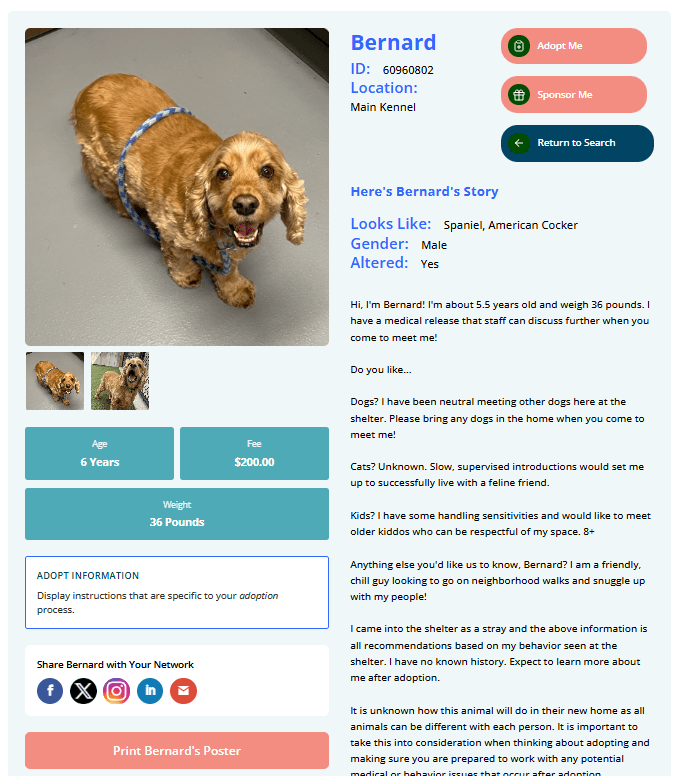
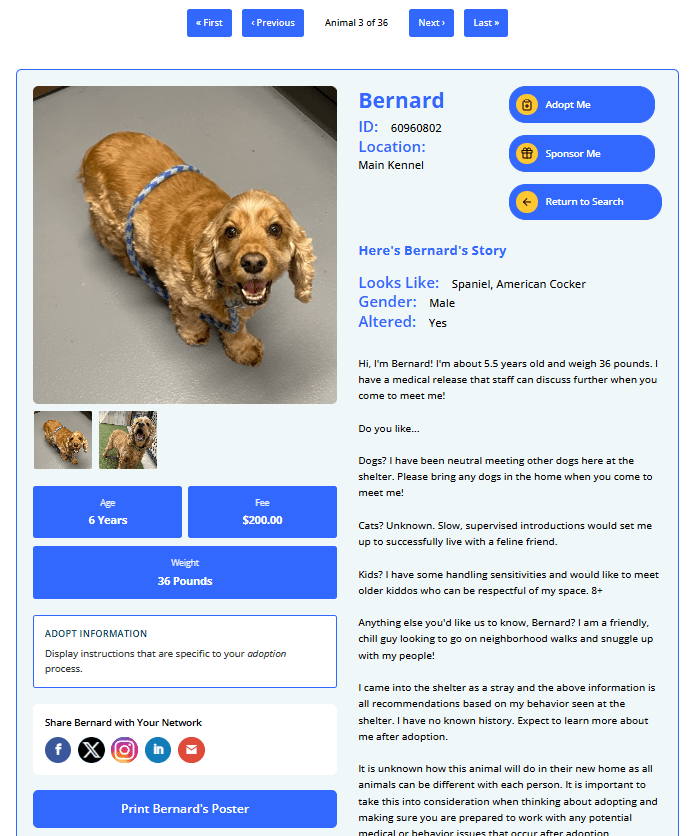
When you save a color in the admin, PetMatchPro generates CSS that overrides these variables. This means your colors automatically cascade to all elements that reference them across every template.
Banner Colors #
The banner color settings on the Colors tab are now the default banner look – the colors applied to every search-card banner unless something more specific overrides them. With Dynamic Banners (Junior+) you can override the banner colors per value under the Banners section, so a held animal can show a red banner while everything else uses the Colors-tab green.
Per-value banner colors win over the Colors-tab default by CSS specificity. The banner color rules were refactored off !important – the default banner rule uses one class and a per-value override uses two classes (.pmp-banner-val-{slug}), so the more specific rule wins cleanly without any !important declarations.
Tips #
- Use your brand colors. Matching PetMatchPro to your site’s color scheme creates a seamless visitor experience and builds trust.
- Test contrast. Make sure text is readable against your chosen background colors. Dark text on light backgrounds (or vice versa) works best.
- Clear your cache. If color changes don’t appear after saving, clear your browser cache and any server-side cache (OPcache, LiteSpeed, CDN).
- No code needed. The Colors tab handles everything — you don’t need to write CSS to change colors.
Custom CSS #
For advanced styling beyond the Colors tab, add custom CSS through the WordPress Customizer:
- In your WordPress admin, go to Appearance > Customize.
- Open the Additional CSS panel.
- Enter your CSS rules.
- Click Publish.
Note: Earlier versions of PetMatchPro included a Custom CSS field in the plugin’s General Options tab. That field has been migrated to the WordPress Customizer’s Additional CSS panel – the WP-native location for site-wide CSS. Any rules previously entered in the plugin field should be moved to the Customizer.
All PetMatchPro elements use CSS classes prefixed with pmp-, making them easy to target. Use your browser’s developer tools (right-click > Inspect) to find the class name of any element you want to style.
No-!important policy. PetMatchPro’s plugin styles do not use !important. When overriding styles, prefer increasing CSS specificity (more specific selectors) rather than reaching for !important.
Next Steps #
- Search Templates Gallery — Browse available templates
- Theme Template Overrides — Full template customization
- Styling Conflicts — Fix CSS conflicts with your theme


