
Search Filter Button #
When search filters are enabled, PetMatchPro displays a filter form that lets visitors narrow results by species, breed, and other criteria. This article covers how the filter form works and how to configure its behavior.
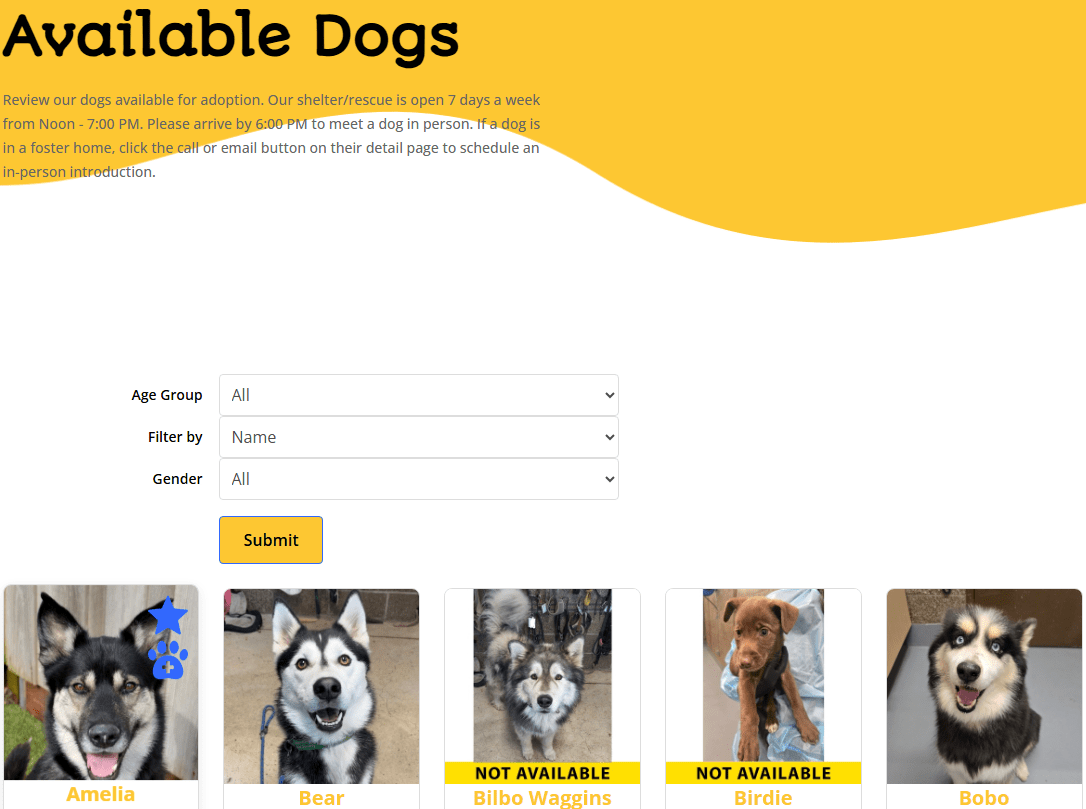
Enabling Search Filters #
Add the filter parameter to your search shortcode:
[pmp-search type="adopt" filter="enable"]Or configure filters through the Filter tab in PetMatchPro admin settings.
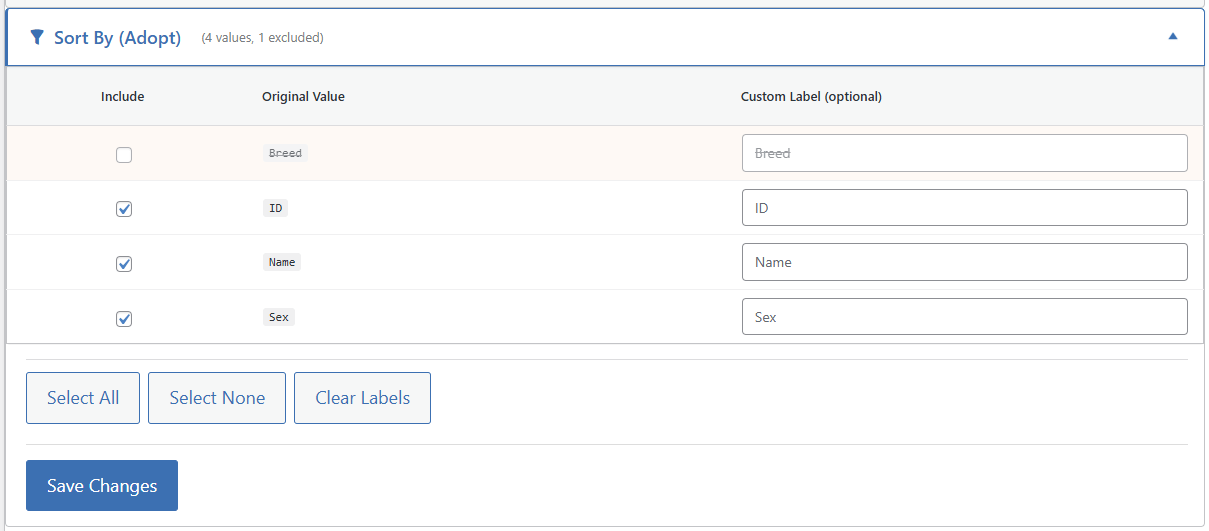
How the Filter Form Works #
When a visitor selects filter values and clicks the submit button:
- The page reloads with the selected filter criteria applied.
- Only animals matching the selected filters are displayed.
- The page scrolls back to the search results area (if anchor scrolling is configured).
Anchor Scrolling #
After a visitor submits a filter or clicks a pagination link, PetMatchPro can automatically scroll the page to the search results section. This prevents visitors from landing at the top of a long page.
The Search Submit Anchor setting controls this behavior:
- Go to PetMatchPro > General Options.
- Find the Search Submit Anchor setting.
- Configure the anchor behavior.
- Click Apply Changes.
This setting is available on all license tiers.
Filter Widget Templates #
Search templates come in two varieties:
- Filter templates — Include built-in filter widgets (dropdowns, search fields)
- No-filter templates — Display results only, without filter controls
When you enable filters via the shortcode, PetMatchPro uses the appropriate filter-enabled template variant. The template naming convention reflects this — for example, universal-search-filter-widget.php includes filters while universal-search-no-filter.php does not.
Filter Configuration #
Which filters are available depends on your integration partner and the fields they support. Configure filters in the Filter tab of PetMatchPro admin settings.
For more on configuring filters, see Setting Up Search Filters.
Button Consistency #
When client-side features are enabled, filter dropdowns and sort buttons appear with different visual styles by default. The Button Consistency option lets you style the filter dropdowns to match the sort buttons for a unified look.
Enabling via Shortcode #
[pmp-search type="adopt" client="enable" button_consistency="enable"]Enabling via Admin Settings #
- Go to PetMatchPro > General Options > Performance.
- Check Enable Client-Side Features (required).
- Check Enable Search Button Consistency.
- Click Apply Changes.
The shortcode parameter takes priority over the admin setting. If not specified in either location, the default behavior is disabled (filter dropdowns retain their original styling).
Next Steps #
- Setting Up Search Filters — Configure filter options
- Species & Breed Filtering — Species and breed filter details
- Partner-Specific Filter Options — Filters available per partner


