
Analytics Queue and WP-Cron Issues #
PetMatchPro’s analytics pipeline (8.7.0+) relies on WordPress’s scheduling system (WP-Cron) to flush a queue of impression and conversion events into daily summary tables. If WP-Cron is broken or disabled, the queue grows, the analytics dashboard stops updating, and recent activity is missing from reports.
This guide walks through diagnosing the issue and getting cron healthy. Analytics tools are Preferred tier.
Symptoms #
- The Analytics dashboard shows no new impressions or conversions for hours or days
- The “Last rollup” timestamp is well in the past
- The analytics event queue depth keeps growing instead of draining
- An admin notice mentions “WP-Cron” or “scheduled task not firing”
Step 1: Check the Tools Tab #
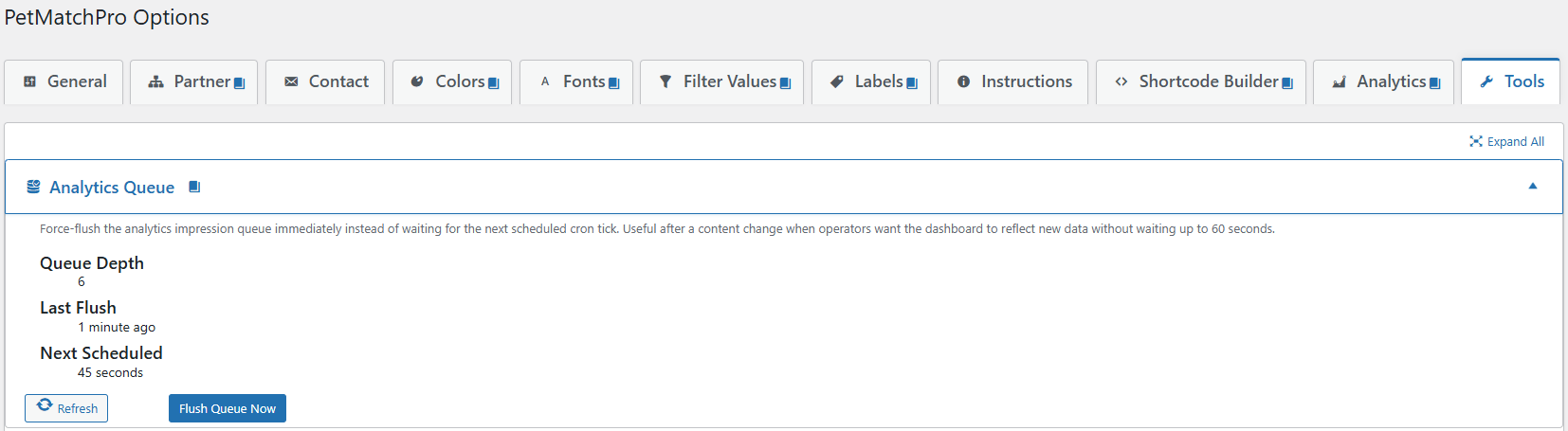
Go to PetMatchPro > Tools. Three accordions help diagnose the analytics pipeline:
| Accordion | What It Shows |
|---|---|
| Analytics Queue | Current queue depth, last successful flush, next scheduled flush time |
| Cron Self-Test | Schedules a one-shot test event 60 seconds in the future and reports whether it actually fired |
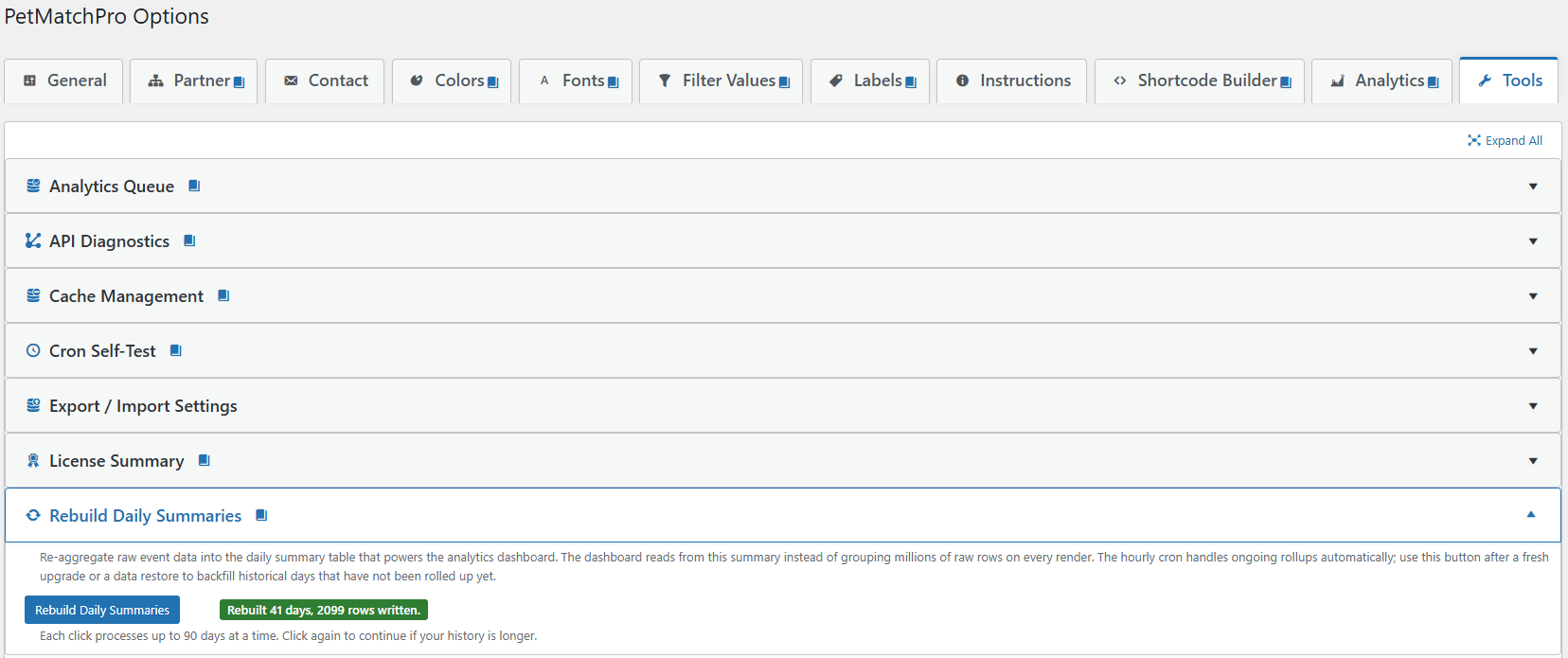
| Rebuild Daily Summaries | Manually re-aggregates raw events into daily summaries (useful after a stuck period) |
Open Analytics Queue first. If the queue depth is non-zero and the next-scheduled time is in the past or shows “not scheduled”, WP-Cron is the most likely culprit.
Step 2: Run the Cron Self-Test #
- Open the Cron Self-Test accordion.
- Click Start Self-Test.
- Wait up to 90 seconds. The test schedules an event 60 seconds out and polls for completion.
Result interpretation:
- “Cron is healthy” — WP-Cron is firing. If the queue is still stuck, jump to Step 5.
- “Does not appear to be firing” — WP-Cron is broken. Continue with Step 3.
Step 3: Check for DISABLE_WP_CRON #
Many managed hosts disable the default WP-Cron handler and replace it with a real server cron. If it’s disabled but no replacement is configured, scheduled events never fire.
- Open
wp-config.phpin your site root. - Search for
DISABLE_WP_CRON. - If you find
define('DISABLE_WP_CRON', true);, you must configure server-side cron (Step 4). - If the line is missing or set to
false, WP-Cron should be running on visitor traffic. If your site has very low traffic, scheduled events may run late or not at all (see Step 5).
Step 4: Set Up Server-Side Cron (Recommended) #
If DISABLE_WP_CRON is true or your traffic is too low to trigger WP-Cron reliably, configure a real cron job on your server to hit wp-cron.php on a schedule.
Option A — cPanel/Plesk:
- Log into your hosting control panel.
- Find Cron Jobs (cPanel) or Scheduled Tasks (Plesk).
- Add a new job that runs every 5 minutes:
*/5 * * * * curl -s https://yourdomain.com/wp-cron.php?doing_wp_cron > /dev/null 2>&1 - Replace
yourdomain.comwith your actual domain.
Option B — Managed host:
Many managed hosts (WP Engine, Kinsta, Pantheon, SiteGround) provide their own WP-Cron replacement that runs automatically. Check your host’s documentation or open a support ticket asking them to confirm WP-Cron is configured for your site.
Option C — External cron service:
Services like EasyCron, Cronless, or cron-job.org can hit your wp-cron.php URL on a schedule without server access. Free tiers usually handle 5-minute intervals.
Step 5: Cron Runs But Queue Is Still Stuck #
If the Cron Self-Test passes but the queue isn’t draining, something is preventing the flush hook from completing.
- Check PHP error log. A fatal error during the flush will leave the queue intact.
- Check PHP memory limit. Very large queues can OOM the flush. Bump
memory_limitto 256M or higher. - Manually flush. In the Analytics Queue accordion, click Flush Queue Now. This bypasses cron and runs the flush in your admin request. If it succeeds, cron should keep up going forward.
Step 6: Rebuild Missing Summaries #
Once the queue is draining and cron is healthy, the Analytics dashboard may still be missing data for the days when cron was broken. Open Tools > Rebuild Daily Summaries and click Rebuild. This re-aggregates raw events into daily summaries for the configured backfill window.
Dropped Events #
As of version 8.16, the Analytics Queue card also shows a Dropped Events figure. On a healthy site this reads None. PetMatchPro buffers incoming events durably and only ever sheds load (incrementing this counter) if the buffer grows extremely large because cron has been broken for a very long time — and every shed event is also written to the PHP error log, so it is never a silent loss. A non-zero value with a red Buffer overflow – check cron badge means WP-Cron has been down long enough to fall badly behind: fix cron using the steps above, and the buffer will drain back to normal.
Prevention #
- If your site has low traffic, set up server-side cron from the start — don’t rely on WP-Cron’s visitor-driven model.
- Monitor the Analytics Queue accordion periodically. A queue depth above a few thousand for more than an hour is a warning sign.
- After major plugin updates, run the Cron Self-Test to confirm scheduled hooks survived the upgrade.
Next Steps #
- WP-Cron Requirement — How PetMatchPro uses scheduled tasks
- Queue Health and Tools — Detailed Tools-tab walkthrough
- Understanding PetMatchPro Analytics — What gets tracked and how


