
GA4 Configuration #
Requires Preferred license.
Google Analytics 4 (GA4) can receive event data from PetMatchPro to help you understand how visitors interact with your animal listings. This guide walks you through the setup.
Prerequisites #
- A Google Analytics 4 property (not Universal Analytics)
- PetMatchPro Analytics tracking enabled (see Understanding PMP Analytics)
- Your GA4 Measurement ID (starts with
G-)
Step 1: Create or Access Your GA4 Property #
- Go to analytics.google.com.
- If you don’t have a GA4 property, click Admin > Create Property and follow the setup wizard.
- If you already have one, navigate to your property.
Step 2: Find Your Measurement ID #
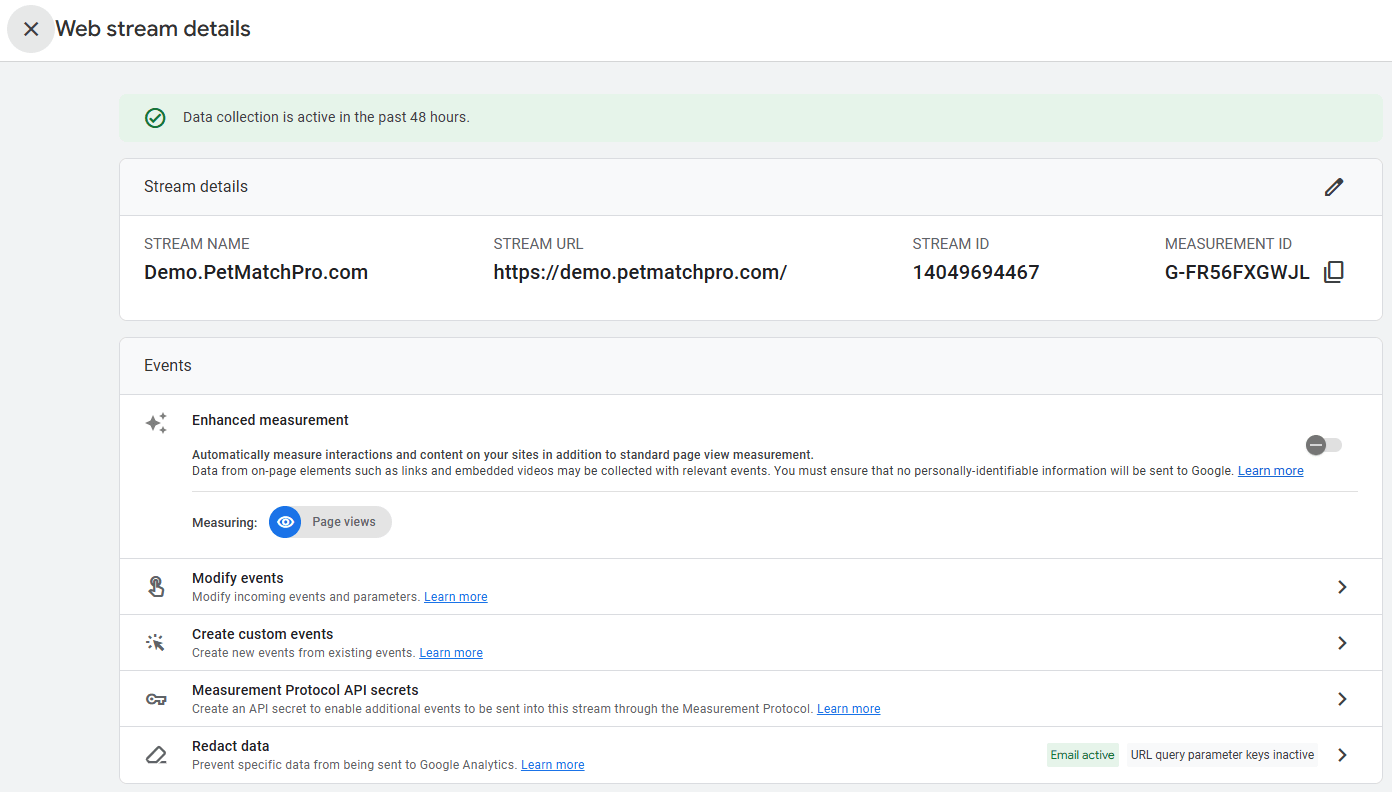
- In GA4, go to Admin > Data Streams.
- Click your web data stream.
- Copy the Measurement ID (format:
G-XXXXXXXXXX).
Step 3: Add GA4 to Your Website #
If GA4 isn’t already installed on your WordPress site, add it using one of these methods:
- Google Site Kit plugin — The official Google WordPress plugin
- Manual installation — Add the GA4 script tag to your theme’s header
- Google Tag Manager — See GTM Setup
Step 4: Enable PetMatchPro Analytics #
- Go to PetMatchPro > Analytics tab.
- Enable Analytics Tracking.
- Click Apply Changes.
How PetMatchPro Events Appear in GA4 #
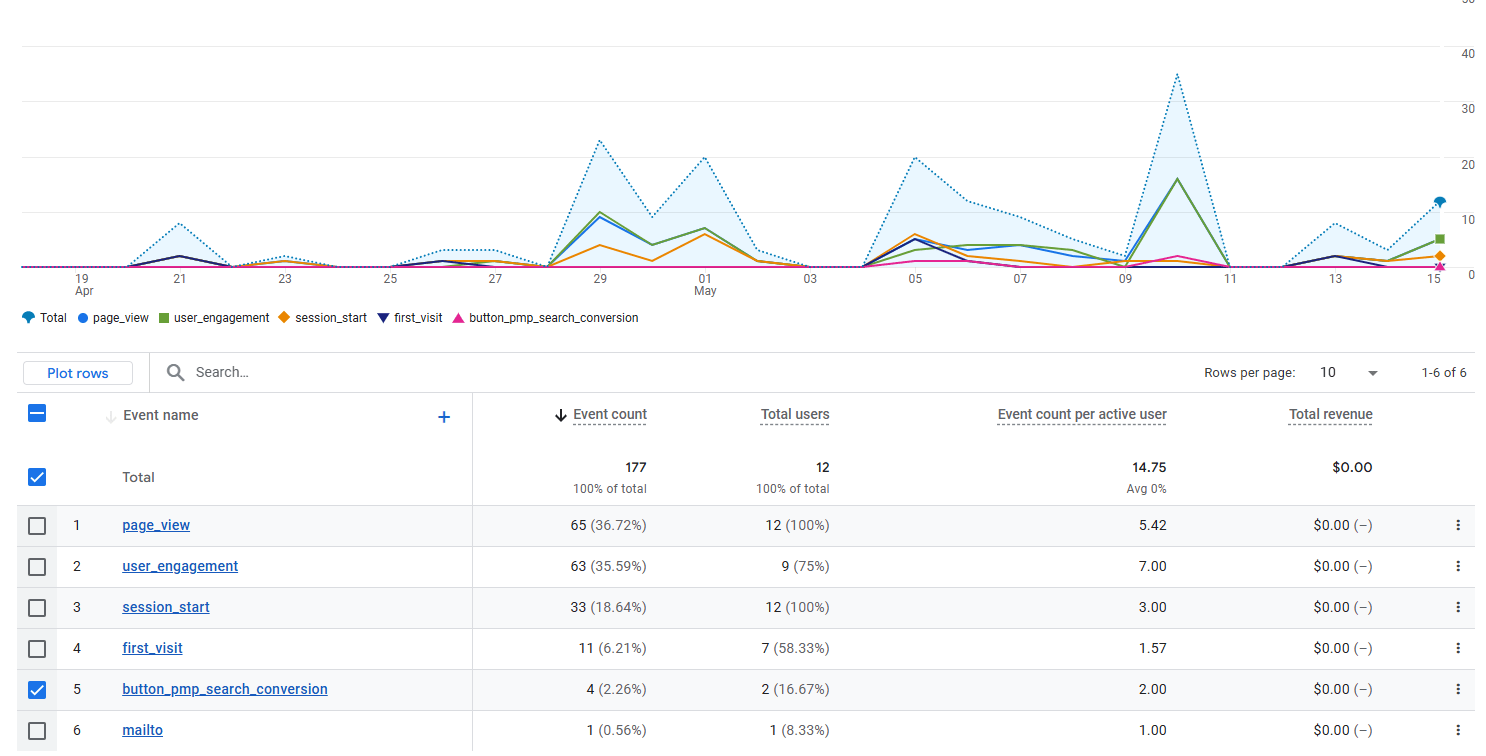
PetMatchPro uses onclick event tracking. The events PetMatchPro sends are captured by GA4 as custom events. You’ll see them in:
- Reports > Engagement > Events — Shows event counts and names
- Explore — Build custom reports with PetMatchPro event data
- Realtime — See events firing in real-time as visitors interact
Step 5: Set Up Custom Event Tracking (Optional) #
For deeper analysis, create custom event definitions in GA4:
- Go to Admin > Events.
- Click Create Event.
- Define events based on the PetMatchPro event types (detail_view, action_click, share_click, etc.).
- Optionally mark key events as Conversions (e.g., adoption application clicks).
Step 6: View Reports #
After events start flowing, use these GA4 reports to analyze PetMatchPro data:
| Report | What You’ll Learn |
|---|---|
| Events overview | Total counts per event type |
| Event parameters | Which animals, species, and actions are most popular |
| Conversions | How many visitors take key actions (applications, calls, emails) |
| Realtime | Live visitor activity on your animal pages |
Next Steps #
- GTM Setup — Alternative setup using Google Tag Manager
- Leveraging Analytics — Turn data into better adopt
GA4 Configuration ultima modifica: 2026-03-25T19:21:36-04:00 da


