
Custom Filter Groups & Labels #
Custom Filter Groups let you build your own search filters around a chosen animal field, decide which of that field’s values become filter options, and set the exact label visitors see for each one. This is separate from the built-in Search Criteria checkboxes on the Partner tab (covered in Setting Up Search Filters) – Filter Groups are the advanced, field-driven builder, and they are where you relabel filter values (for example, showing the location value Kennel - Greenhill as “Main Kennel”).
Filter Groups are configured in PetMatchPro Options > General > Exclusions & Filters, per method type (Adopt, Found, Lost, List, Preferred – depending on what your partner supports). Each method type can hold one or more groups, and each group is a self-contained set of fields, filter values, labels, and exclusions.
What a Filter Group Contains #
Each group is built around a single source field and then defines how its values appear:
- Primary Field – the animal field this group filters on (for example,
Location). - Fallback Field – an optional second field used when the primary field has no value for an animal.
- Number of Exclusions and Exclusion rows – values of the field to hide from results.
- Number of Filters and the Filter / Filter Label rows – the specific values to expose as filter options and the label shown for each.
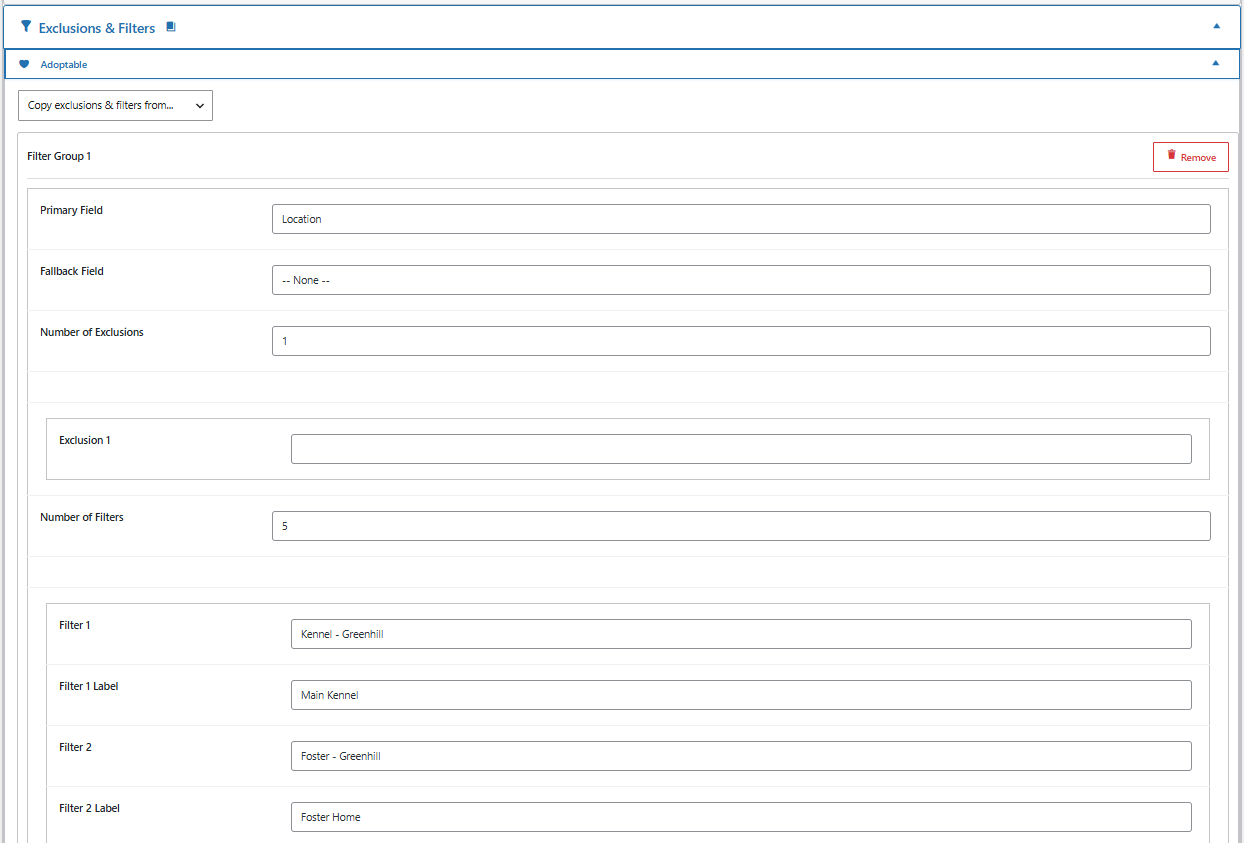
Use Add Filter Group to create additional groups for a method type, the Copy exclusions & filters from… dropdown to clone a group you have already built on another method type, and Remove to delete a group. Click Save Changes within the method accordion to store your work.
Primary & Fallback Field #
The Primary Field is the animal field the group filters on. Choose it from the dropdown of fields eligible for this method type and partner (for example, Location, Breed, or Age Group). Everything else in the group – the exclusions and the filter values below – operates on this field.
The Fallback Field is optional. When an animal has no value for the Primary Field, PetMatchPro falls back to this second field so the animal can still be filtered. Leave it set to -- None -- if you do not need a fallback.
Number of Filters #
The Number of Filters selector sets how many filter-value rows the group shows, from 1 to 10. Changing it adds or removes paired Filter / Filter Label rows below it. Set this first, then fill in the rows.
Filter Values & Labels #
Each filter row is a pair of inputs that curates one value of the Primary Field:
- Filter N – a value of the Primary Field to expose as a filter option (for example, the location value
Kennel - Greenhill). This is the underlying value PetMatchPro matches against. - Filter N Label – the friendly text shown to visitors for that value (for example,
Main Kennel). This is the main way to relabel a filter value. Leave it blank to display the raw value as-is.
In the screenshot above, with Primary Field set to Location, Filter 1 surfaces the value Kennel - Greenhill under the label Main Kennel, and Filter 2 surfaces Foster - Greenhill under Foster Home. Visitors see the friendly labels; PetMatchPro filters on the underlying location values.
Filter Groups vs. Filter Value Management: a Filter Group lets you curate and relabel a specific, hand-picked set of values for one field. Filter Value Management instead works across the full, auto-populated value list for a filter – use it when you want to rename or hide values without defining each one by hand.
Excluding Values #
The Number of Exclusions selector and the Exclusion rows below it let a group hide specific values of the Primary Field from search results site-wide for that method type. Because exclusion is its own topic, it has a dedicated guide: see Excluding Values via Filtering.
License Availability #
Filter Groups follow the same per-method licensing as the rest of the Exclusions & Filters section:
| Method | License Required |
|---|---|
| Adopt | Basic |
| Found | Junior |
| Lost | Junior |
| List (PetPoint only) | Junior |
| Preferred (AnimalsFirst only) | Preferred |
License tiers are enforced automatically – a method type whose filter capability is not licensed simply does not show its Filter Group controls.
Next Steps #
- Setting Up Search Filters — The built-in Partner-tab Search Criteria checkboxes
- Filter Value Management — Rename or hide values across a filter’s full value list
- Excluding Values via Filtering — Hide field values from results
- Partner-Specific Filter Options — Which fields are available per partner


