
Dynamic Banners #
Dynamic Banners let you drive the banner text on search-result cards – and an optional per-value color – from animal fields instead of a single static message. Instead of every card showing the same banner, you map the values of one or more source fields to display labels, so each card shows the banner that matches that animal’s data.
The classic example: an animal that is on hold should shout On Hold in red, while every other animal invites visitors with a friendly green Adopt Me. With Dynamic Banners you configure that once and PetMatchPro applies the correct banner to each card automatically.
New in 8.18.0: banners are now driven by an ordered cascade of priority levels. Each level has its own source field and its own value rows, and the levels are checked in order until one matches. That lets you layer rules – for example, On Hold first, then Special Needs, then Senior, and finally a default Adopt Me – so the most important status always wins. See Priority Levels below.
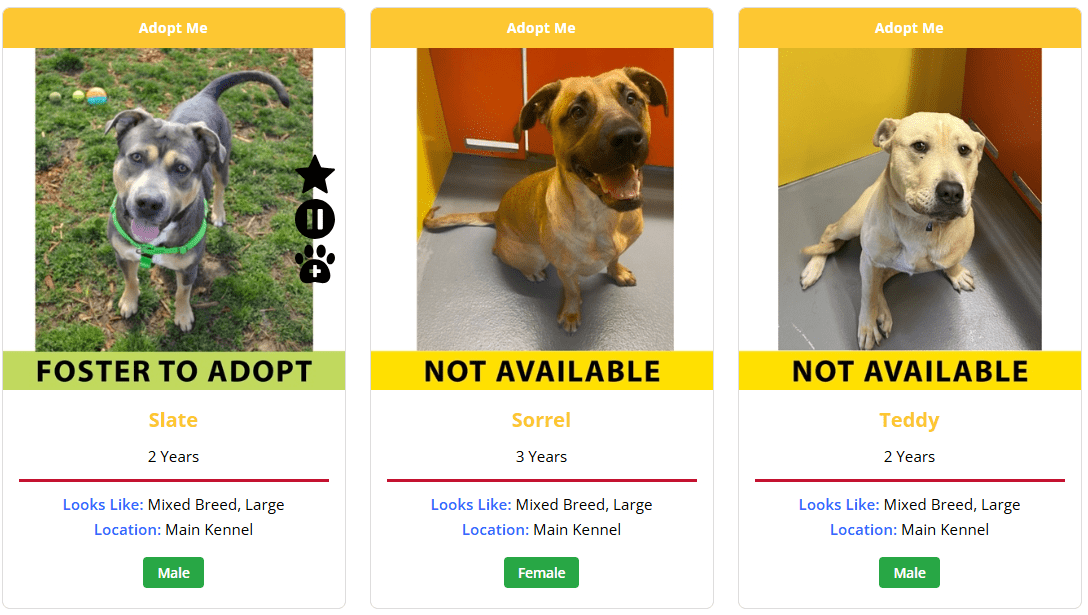 |
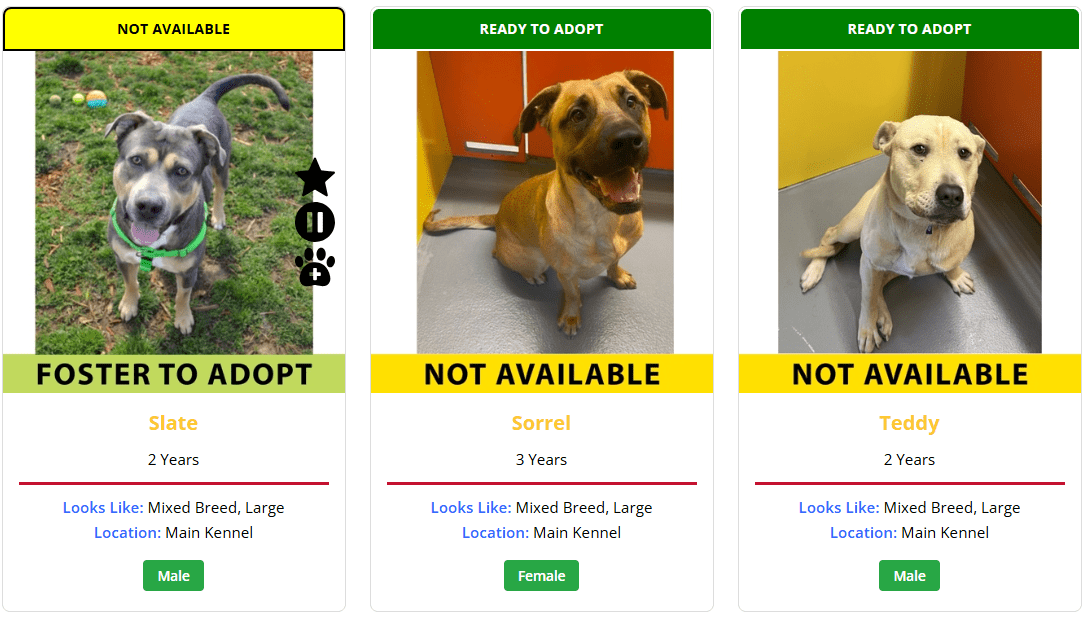 |
Requires Junior license. Both the admin toggle and the dynamic_banner shortcode override are Junior-gated.
New in 8.20.0: dynamic banners can now appear on single-animal detail pages as a full-width strip above the main photo, controlled by an independent per-method toggle. Detail banners reuse the exact same levels, default, and per-value colors as your search cards, so one configuration drives both surfaces. See Detail Pages below.
Enabling Dynamic Banners #
Dynamic Banners are configured under PetMatchPro Options > Banners – a dedicated admin tab. Settings are per method type (adopt, lost, found, list, preferred – depending on which methods your partner supports), so you can run a different banner scheme for adoptable animals than for lost or found reports.
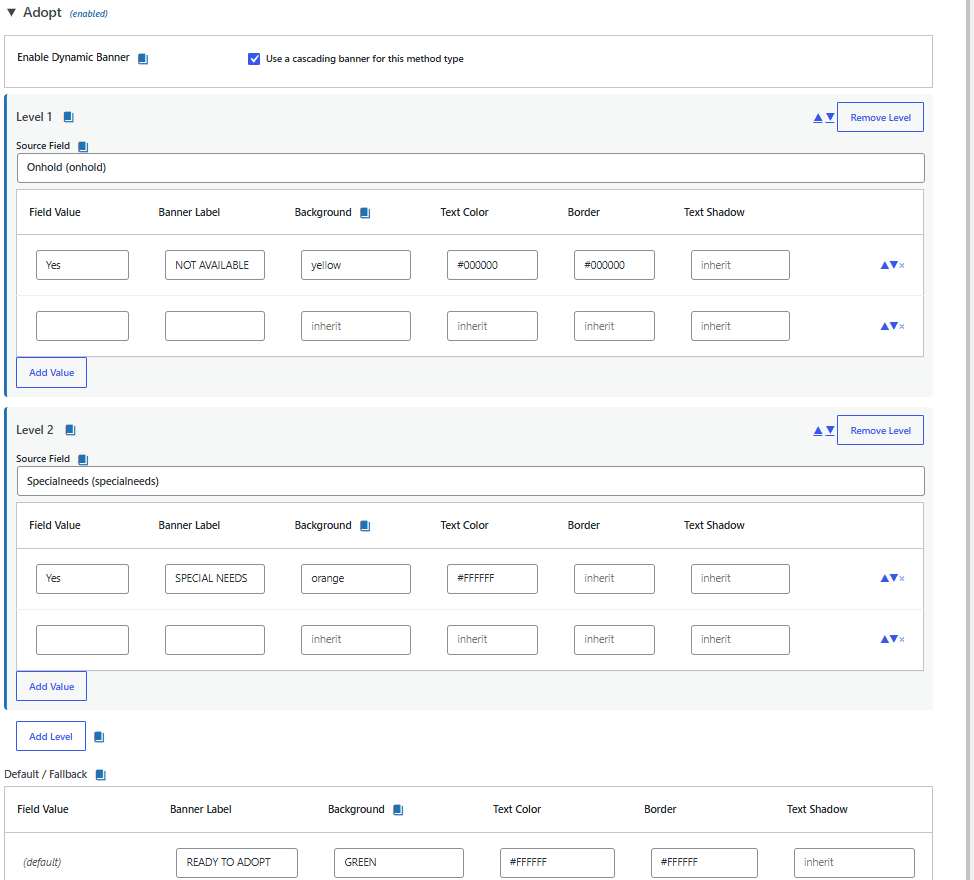
- Go to the PetMatchPro Options > Banners tab.
- Choose the method type you want to configure (for example, adopt).
- Turn on Show on search results for that method type (and/or Show on detail pages – see Detail Pages).
- Click Add Level to create a priority level (your first level is Level 1).
- Pick a Source Field for that level (see below).
- Add one or more Value → Label rows to the level with the Add Value button.
- Add more levels as needed and order them with the up/down controls – the top level has the highest priority.
- Optionally set the single Default / Fallback label for animals that match no level.
- Click Save.
Detail Pages #
New in 8.20.0. Dynamic banners can also appear on the single-animal detail page, rendered as a full-width strip directly above the main photo (it is a strip, not an overlay drawn over the image). The detail strip reuses the same configuration as your search cards – the same priority levels, the same source fields, the same Default / Fallback row, and the same per-value colors. There is nothing separate to map: whatever an animal shows on its search card is what it shows on its detail page.
The one thing you control separately is where banners appear. The Banners tab has two independent checkboxes per method type:
- Show on search results – draws the banner on search-result cards (this is the original toggle, renamed).
- Show on detail pages – draws the banner as the strip above the photo on the detail page.
The two toggles are fully independent – neither implies the other. You can show banners on cards but not detail pages, on detail pages but not cards, or on both. Show on detail pages is off by default, so existing sites see no change on detail pages until you turn it on.
You can also override the detail strip per shortcode with the dynamic_banner parameter on [pmp-details]: dynamic_banner="on" forces the strip on for that page (still requires Junior+ and a configured level or default), and dynamic_banner="off" suppresses it even when the toggle is on.
New in 8.23.24: the static banner= parameter now works on [pmp-details] as well, and takes priority there exactly as it does on search cards. [pmp-details banner="Foster-to-Adopt pet"] shows that copy as the strip, with no per-value color class and regardless of the Show on detail pages toggle. Before 8.23.24 the parameter was accepted on [pmp-search] only, so identical copy appeared on the result card and silently vanished on the detail page. A companion banner_size parameter (small, large, xl) scales the detail strip text and applies to both static and dynamic banners.
Everything else behaves exactly as it does on search cards: the same Junior+ requirement, the same first-match-wins cascade, and the same empty-default rule (a blank Default / Fallback label renders no strip). Because the colors are shared, a value shown red on a card is shown red on the detail strip.
Fixed in 8.23.25: your source field no longer has to be a field the detail page displays. Before 8.23.25 the detail page could only read fields it was already rendering, so a banner built on a source field the page did not show – memolist being the common case – matched on search cards and never on the detail page. It fell through to the Default / Fallback row instead, which looks like “the banner disappeared”. If you worked around this by adding the source field to your details list purely to make banners work, you can take it back out.
Aligned photo tops on search grids #
Also new in 8.20.0: when a search grid contains at least one banner, the cards without a banner reserve the banner’s height above their photo, so every photo top lines up in a clean row. A grid where no animal resolves a banner reserves nothing, so grids that never had banners look exactly as before. This keeps mixed grids – for example, a blank default with an On Hold banner on only some animals – from showing ragged, uneven photo tops. It is automatic and needs no configuration.
Priority Levels (Cascade) #
Each method type is configured as an ordered list of priority levels. A level is a self-contained rule: it has its own Source Field and its own set of Value → Label rows. PetMatchPro walks the levels from top to bottom and the first level that matches wins.
The key behavior is fall-through: if a level’s source field has a value but that value matches none of the level’s rows, evaluation continues to the next level – it does not jump straight to the default. Only when every level has been checked with no match does the single Default / Fallback row apply.
A worked three-level example for adoptable animals:
| Priority | Source field | Value → Label | Color |
|---|---|---|---|
| Level 1 | onhold |
Yes → On Hold |
Red |
| Level 2 | special_needs |
Yes → Special Needs |
Blue |
| Level 3 | age_group |
Senior → Senior |
Amber |
| Default | – | Adopt Me | Green |
With this configuration, an animal that is on hold shows On Hold even if it is also a senior, because Level 1 wins. A senior animal that is not on hold and has no special needs falls through Levels 1 and 2 and shows Senior. An animal that matches none of the three levels shows Adopt Me.
Ordering, adding, and removing levels #
- Add Level appends a new, empty level. Add Value adds a row within a level.
- The up/down controls on each level and each row change priority – no retyping required. Saving stores the levels in the exact order shown.
- Remove Level and the row remove control delete that level or row. Empty rows and empty levels are dropped automatically when you save.
Recommended maximums: up to 10 levels per method type and 25 values per level. These are soft guidelines, not hard limits – the admin shows an advisory note if you exceed them but never blocks saving. They exist to keep the configuration and the generated CSS manageable.
Choosing a Source Field #
The Source Field is the animal field whose value decides whether a level matches. Each level picks its own source field. The available source fields depend on your integration partner:
| Partner | Source field(s) |
|---|---|
| PetPoint | onhold (also stage / stageid and other status-icon fields) |
| AnimalsFirst | status |
| RescueGroups | animalstatus |
For the On Hold / Adopt Me example, the PetPoint onhold field is the source: when it reads Yes the animal is on hold, otherwise it is available.
Building Value to Label Rows #
Each row maps one source-field value to the banner label that should display when an animal has that value. Rows are repeatable – add as many as you need.
For the worked example, with onhold as the source field you would add a single row:
| Value | Label |
|---|---|
Yes |
On Hold |
Animals whose onhold value is Yes get the On Hold banner. Everything else falls through to the default / fallback row (see below), which you would set to Adopt Me.
Per-Value Colors #
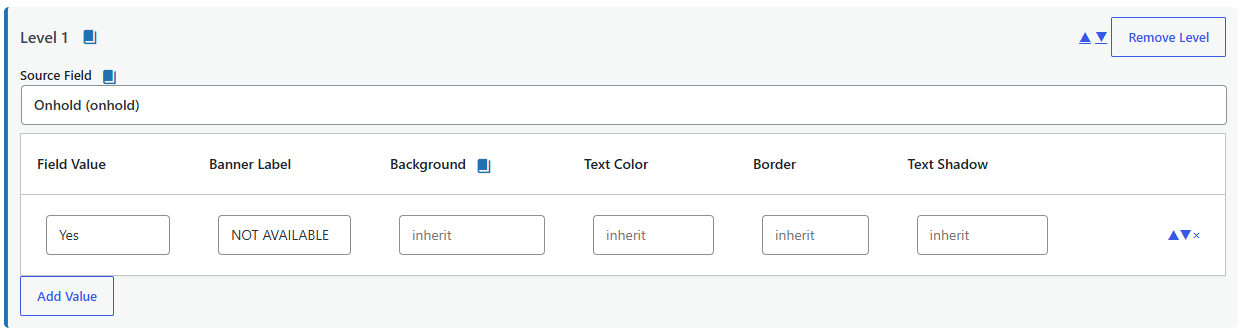
Each Value → Label row has optional background, text, and border color fields. Use them to give a value its own look – a red On Hold banner and a green Adopt Me banner, for instance.
- Leave a color field blank to inherit the default. A blank color falls back to the banner colors configured on the Colors tab. The Colors tab is now the default banner look.
- Fill a color field to override. A per-value color wins over the Colors-tab default by CSS specificity – no
!importantis used. The banner color CSS is container-scoped, with a per-value class of.pmp-banner-val-{slug}. As of 8.18.0 the slug is namespaced by method type and level (for exampleadopt-l0-on-hold), so the same value used on two different levels can carry two distinct colors without colliding. These class names are internal and regenerate automatically on save.
Because per-value overrides win by specificity rather than !important, you can still layer your own theme CSS on top using a more specific selector. See Styling Conflicts if a theme rule is fighting your banner colors.
Default / Fallback Row #
The Default / Fallback row sets the banner label (and optional colors) for any animal whose source-field value does not match a configured Value → Label row. In the worked example this is where you put Adopt Me in green.
One important rule:
- An empty default label renders no banner at all for unmatched values. PetMatchPro does not draw an empty box – the card simply has no banner. Use this when you only want a banner on specific values (for example, show On Hold only on held animals and nothing on the rest).
How Matching Works #
Matching is straightforward and predictable:
- Within a level: exact match, case-insensitive. The animal’s source-field value is compared to each row’s value ignoring letter case. There is no “contains”, multi-value, or regular-expression matching. The first row whose value matches is used.
- Across levels: the first level that produces a match wins. A level whose field has a value that matches none of its rows falls through to the next level rather than stopping at the default.
- No match falls back to the default. Only after every level is checked with no match is the single Default / Fallback label used – and if that label is empty, no banner renders.
Troubleshooting #
A banner shows on search cards but not on the detail page. Fixed in 8.23.25 – upgrade. Before that release this happened whenever the source field was not also displayed on the detail page.
Cards show a blank strip where a banner should be. Check the Default / Fallback row. If it has a Background color but its Text Color is left on inherit, the label inherits the stylesheet’s white and renders white text on your background – most visibly white-on-white if the background is also white. The banner is rendering; you just cannot read it. Either give the Default row a Text Color, or clear its Banner Label so no fallback strip renders at all.
Some animals match and others do not, and you cannot see why. Matching is exact and case-insensitive against the Field Value column, so punctuation counts: Foster-to-Adopt Banner and Foster to Adopt Banner are different values. Copy the value out of your shelter system rather than retyping it. As of 8.23.25 a source field that returns a list (again, memolist) matches on any entry in that list, not only the first, so an animal carrying several memos resolves correctly.
License Requirements #
Dynamic Banners require a Junior license or higher. On the Basic tier the Banners admin section and the dynamic_banner shortcode override are not available. Junior and Preferred sites get the full feature.
The static banner= shortcode parameter still takes priority over dynamic banners for back-compatibility: if a shortcode sets banner="...", that static text is shown on every card and no per-value color class is applied. Dynamic banners only kick in when no static banner= is present. As of 8.23.24 this precedence is identical on [pmp-details], so the two surfaces can no longer disagree about which banner wins.
Next Steps #
- Color Customization – Set the default banner look that per-value colors inherit from
- Using Banners and Subtitles Effectively – Best practices for banner messaging
- [pmp-search] Reference – The
dynamic_bannershortcode override - Styling Conflicts – Resolve theme CSS that overrides banner colors


