
Shortcode Builder #
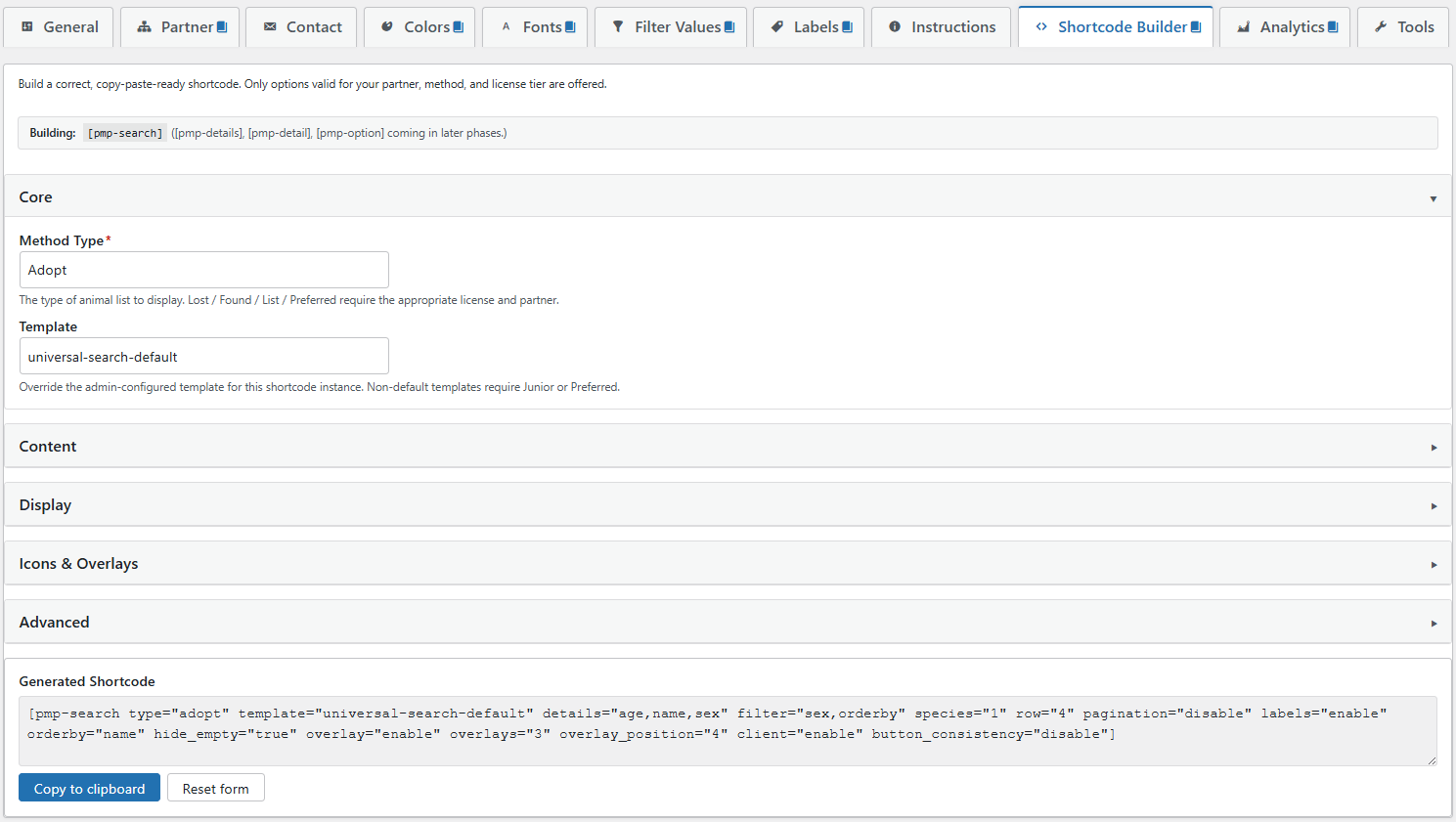
The Shortcode Builder is a visual tool inside your WordPress admin that generates correct, copy-paste-ready PetMatchPro shortcodes – no hand-typing required. It understands your configured partner, your license tier, your installed templates, and your field set, and only offers options that are valid for your site.
Who Can Use It #
The Shortcode Builder is available on Junior and Preferred licenses. Basic License sites see the tab with an upgrade notice.
Where to Find It #
In your WordPress admin, open the PetMatchPro Options page and click the Shortcode Builder tab.

What’s Supported #
The builder supports all four PetMatchPro content shortcodes, each on its own sub-tab:
[pmp-search]– search-result pages. Method, template, fields, filters, species, pagination, labels, icons, overlays, client mode, and more.[pmp-details]– single-animal detail pages. Template, fields, quick fields, title fields, stats rows, labels, social share, thumbnails, icons, overlays, poster flag, and per-button hover-text overrides.[pmp-detail]– a single field value for the current animal. Field picker (method-scoped), letter case, whitespace-replacement text.[pmp-option]– a saved admin setting value. Option Type (Colors / Contact / Fonts / General / Labels / Partner) and the specific Value key within that type.
Sub-Tab Navigation #
A row of sub-tabs at the top of the builder switches between the four shortcodes. Each sub-tab preserves its own form state – if you fill in [pmp-search], switch to [pmp-details], and switch back, your [pmp-search] values are still there. The Generated Shortcode textarea always reflects the active sub-tab.
Every sub-tab header has a KB help icon linking back to that shortcode’s reference article.
How It Works #
The [pmp-search] and [pmp-details] sub-tabs group controls into collapsible sections for ease of scanning:
- Core – method type and template.
- Content – fields to display, filter widgets, species, and (on
[pmp-details]) quick / title / stats field groups. - Display – title / subtitle / banner, the
dynamic_banneroverride (see Dynamic Banners), results-per-row, row counts, pagination, labels, separator, order-by, sort order, hide-empty, heading sizes. - Icons & Overlays – icon toggle, max icons per card, icon size, photo overlays, max overlays per photo, overlay filter, overlay position.
- Advanced – client mode, button consistency, exclude values, poster flag, exclude buttons, hover-text overrides.
The [pmp-detail] and [pmp-option] sub-tabs use a single Core section – they have fewer parameters and no grouping is needed.
As you change fields, a live Generated Shortcode textarea at the bottom of the form updates on every keystroke. When you’re happy with the output, click Copy to clipboard and paste into any page or post.
Required-Field Validation #
Some parameters are required (for example, [pmp-option] needs both a type and a value). If a required parameter is missing, a yellow Missing required: banner appears between the output label and the textarea, listing which fields still need to be filled. The textarea still updates so you can see the shortcode as it stands, but the banner makes it clear the output is not yet complete.
Locked Parameters #
If a parameter requires a higher license tier than your site has, it renders in a disabled state with a lock icon, a tooltip naming the required tier, and an Upgrade link. Locked parameters stay visible (not hidden) so you can see what upgrading unlocks. In the current release every Shortcode Builder parameter is available at Junior and Preferred, so Junior and Preferred sites see no locks. Basic License sites see the tab-level upgrade notice instead of the form and therefore do not see individual locks either. As future releases add Preferred-only parameters, Junior sites will start seeing them in the locked state described above. For a full breakdown of which parameters each tier includes, see Parameters by License Tier.
Partner and Method Awareness #
The builder is aware of your configured partner and the method you select:
- The method dropdown only lists methods your partner supports.
- Changing the method repopulates the Template dropdown with templates that exist for that method plus any universal templates.
- The Fields to Display checkboxes, the Search Filters list, the Species dropdown, Order By, and Sort Order all re-populate for the selected method.
- On
[pmp-detail], the single-field Field dropdown is also method-scoped. Fields that require a higher license tier than yours are shown with an (Upgrade required) suffix and are disabled so you cannot generate a shortcode that would fail at render time. - Parameters a partner doesn’t support (for example, PetPoint does not expose sort order as a filter) are hidden entirely rather than rendered empty.
Method Type on [pmp-detail] and [pmp-details] #
The [pmp-detail] and [pmp-details] shortcodes do not accept a type parameter – they infer the method from the page URL at runtime. The Method Type selector on those sub-tabs is therefore a UI-only scoping control: it filters the Template and Field lists to the method you are targeting but is never emitted in the generated output.
[pmp-option] Value Source #
On the [pmp-option] sub-tab, the Value dropdown is populated from the keys actually saved under the selected Option Type on this site. That means:
- If the selected tab has never been saved (for example a fresh install that has not touched the Labels tab), the Value list is empty and a bold note appears prompting you to save that tab first. Once saved, reload the Shortcode Builder tab and the keys will appear.
- Fonts are the one exception – the Value list falls back to the declared
font_size_*constants so you can generate a Fonts shortcode even before saving the Fonts tab. - The Filter Values option group is intentionally excluded from the Option Type dropdown – its values are nested arrays per filter field, not scalar strings, so
[pmp-option]cannot render anything useful from them.
Hiding All Filters vs. Selecting Filters #
The Search Filters multiselect lets you pick specific filter widgets to render, or pick the special Disable all filters option to suppress the filter widget entirely. Leave the multiselect empty to use the admin-configured default.
Conditional Fields #
The Field Separator control only appears when Show Field Labels is set to Disable. When labels are shown, a separator is not needed.
Copy-to-Clipboard #
The builder uses the modern Clipboard API. On older browsers or non-HTTPS local dev sites where the Clipboard API is unavailable, the textarea is selected automatically and a notice prompts you to press Ctrl+C / Cmd+C.
Refreshing Source Data #
The builder reads its filter values, templates, and field sets once per page load. If you change a filter value, install a new template file, or update labels in the Labels tab, reload the Shortcode Builder tab to pick up the new data.
Current Limitations #
On the roadmap – not yet in the builder:
- Live preview. The builder emits a shortcode string; it does not render a sample result.
- Saved presets. Each session starts fresh; copy the output to reuse.
- Shortcode parsing. Pasting an existing shortcode does not pre-populate the form.
Frequently Asked Questions #
Why is my Species dropdown empty? #
Species values come from the Filter Values tab. For AnimalsFirst and RescueGroups, click Refresh Filter Values in that tab to pull the latest list from your partner’s API. For PetPoint, species values ship with the plugin.
Why don’t I see Sort Order when my partner is PetPoint? #
PetPoint’s API does not expose a user-facing sort-order filter, so the builder hides that control entirely for PP sites rather than showing an empty dropdown. AnimalsFirst and RescueGroups both expose sort order and will show the control.
Why are some fields greyed out with a lock icon? #
Those parameters require a higher license tier than your site currently has. Hover the lock icon for the specific tier required, or see Parameters by License Tier for the full list.
I added a new template to my theme – why doesn’t it show up in the builder? #
Template discovery runs once per page load. Reload the Shortcode Builder tab to pick up new template files.
Can I edit the generated shortcode by hand? #
Yes. Copy the output into your page or post and edit freely. The builder is a starting point, not a required gateway – any valid PetMatchPro shortcode works whether the builder produced it or not.
My [pmp-option] Value dropdown is empty. Why? #
The Value list reads from the live saved settings for the selected Option Type. If that admin tab has never been saved on this site, there is nothing to list. Open the matching admin tab, save it once, then reload the Shortcode Builder tab.
Next Steps #
- [pmp-search] Reference – all parameters the Search sub-tab can emit
- [pmp-details] Reference – all parameters the Details sub-tab can emit
- [pmp-detail] Reference – all parameters the Detail sub-tab can emit
- [pmp-option] Reference – all parameters the Option sub-tab can emit
- Parameters by License Tier – what each tier unlocks
- Common Shortcode Recipes – copy-paste examples


