
X
🐾 Coming from PetMatchPro 6.x? Version 8 adds real adoption analytics, similar-animal suggestions, SEO-friendly URLs, and overlay badges. See What's New →
PetMatchPro
  • Partners
    • AnimalsFirst
    • PetPoint
    • RescueGroups
  • What’s New
  • Shop
  • Demo
  • FAQ
  • Knowledge Base
  • About Us
  • Contact Us
  • My Account
  • Cart
Select Page
Green rocket icon for Getting Started documentation category

Getting Started

6
  • Activate Your License
  • Setup Wizard Walkthrough
  • Connecting Your Shelter System
  • Understanding License Tiers
  • Creating Your First Search Page
  • Creating Your First Detail Page
Blue code brackets icon for Shortcodes and Configuration documentation category

Shortcodes & Configuration

12
  • Shortcode Builder
  • [pmp-search] Reference
  • [pmp-details] Reference
  • [pmp-detail] Reference
  • [pmp-option] Reference
  • Parameters by License Tier
  • Common Shortcode Recipes
  • Pagination Setup
  • Excluding Values
  • Search Filter Button
  • Detail Button Hover Text
  • Search Card Hover Text
Purple palette icon for Templates and Design documentation category

Templates & Design

7
  • Search Templates Gallery
  • Detail Templates Gallery
  • Poster Templates
  • Theme Template Overrides
  • Color Customization
  • Font Size Customization
  • Detail Title Formats
Orange image with star icon for Icons and Overlays documentation category

Icons & Overlays

6
  • Understanding Pet Icons
  • Understanding Overlays
  • Icon Reference Gallery
  • Customizing Icon Display
  • Value-Based Icons
  • Icon Size Customization
Teal tag icon for Labels and Customization documentation category

Labels & Customization

3
  • Custom Labels Guide
  • Changing Labels via Filtering
  • Custom Currency & Date Formats
Blue funnel icon for Filters and Search documentation category

Filters & Search

5
  • Setting Up Search Filters
  • Species & Breed Filtering
  • Filter Value Management
  • Excluding Values via Filtering
  • Partner-Specific Filter Options
Violet chain link icon for Partner Integration Guides documentation category

Partner Guides

3
  • AnimalsFirst Integration Guide
  • PetPoint Integration Guide
  • RescueGroups Integration Guide
Red bar chart icon for Analytics and Tracking documentation category

Analytics & Tracking

7
  • Understanding PMP Analytics
  • GA4 Configuration
  • Google Tag Manager Setup
  • Leveraging Analytics
  • WP-Cron Requirements for PetMatchPro Analytics
  • Queue Health and Tools
  • Privacy and Data Retention
Amber wrench icon for Troubleshooting and FAQ documentation category

Troubleshooting

15
  • Common Error Messages
  • API Connection Issues
  • Template Not Found Errors
  • Theme Template Override Not Loading
  • Performance & Caching Best Practices
  • Animals Not Displaying
  • Stale Content / Cache Issues
  • Styling Conflicts
  • Empty Field Display
  • Analytics Queue Stuck or WP-Cron Not Running
  • Premium Feature Not Appearing After Upgrade
  • Troubleshoot the PetMatchPro Shortcode Builder
  • Reading PMP Debug Logs
  • wp-config.php Configuration Constants
  • How to Contact Support
Lightbulb icon representing PetMatchPro best practices guides for homepage layouts, button strategy, performance tuning, and template selection

Best Practices

10
  • Featuring Animals on Your Homepage
  • Adding Animals to Sidebars and Other Pages
  • Using Banners and Subtitles Effectively
  • Overlays and Icons for Quick Visual Cues
  • Writing Effective Detail Page Instructions
  • Button Configuration for Conversion
  • Optimizing Performance with API Caching
  • Customizing Typography and Icon Sizes
  • Lost and Found Search Best Practices
  • Template Selection Guide
View Categories
  • Home
  • Knowledge Base
  • Shortcodes & Configuration
  • Search Filter Button

Search Filter Button

1 min read

Search Filter Button #

When search filters are enabled, PetMatchPro displays a filter form that lets visitors narrow results by species, breed, and other criteria. This article covers how the filter form works and how to configure its behavior.
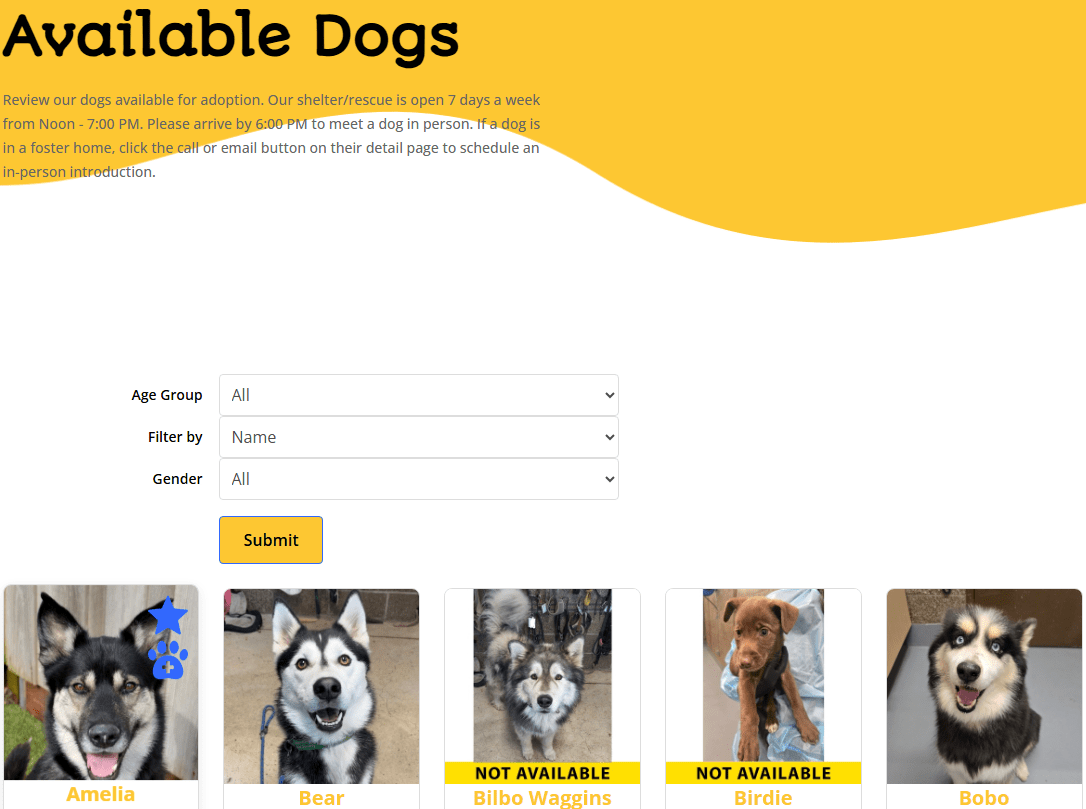
PetMatchPro search results page with filter dropdowns for species, breed, and other criteria

Enabling Search Filters #

Add the filter parameter to your search shortcode:

[pmp-search type="adopt" filter="enable"]

Or configure filters through the Filter tab in PetMatchPro admin settings.
How the Filter Form Works #

When a visitor selects filter values and clicks the submit button:

  1. The page reloads with the selected filter criteria applied.
  2. Only animals matching the selected filters are displayed.
  3. The page scrolls back to the search results area (if anchor scrolling is configured).

Anchor Scrolling #

After a visitor submits a filter or clicks a pagination link, PetMatchPro can automatically scroll the page to the search results section. This prevents visitors from landing at the top of a long page.

The Search Submit Anchor setting controls this behavior:

  1. Go to PetMatchPro > General Options.
  2. Find the Search Submit Anchor setting.
  3. Configure the anchor behavior.
  4. Click Apply Changes.

This setting is available on all license tiers.

Filter Widget Templates #

Search templates come in two varieties:

  • Filter templates — Include built-in filter widgets (dropdowns, search fields)
  • No-filter templates — Display results only, without filter controls

When you enable filters via the shortcode, PetMatchPro uses the appropriate filter-enabled template variant. The template naming convention reflects this — for example, universal-search-filter-widget.php includes filters while universal-search-no-filter.php does not.

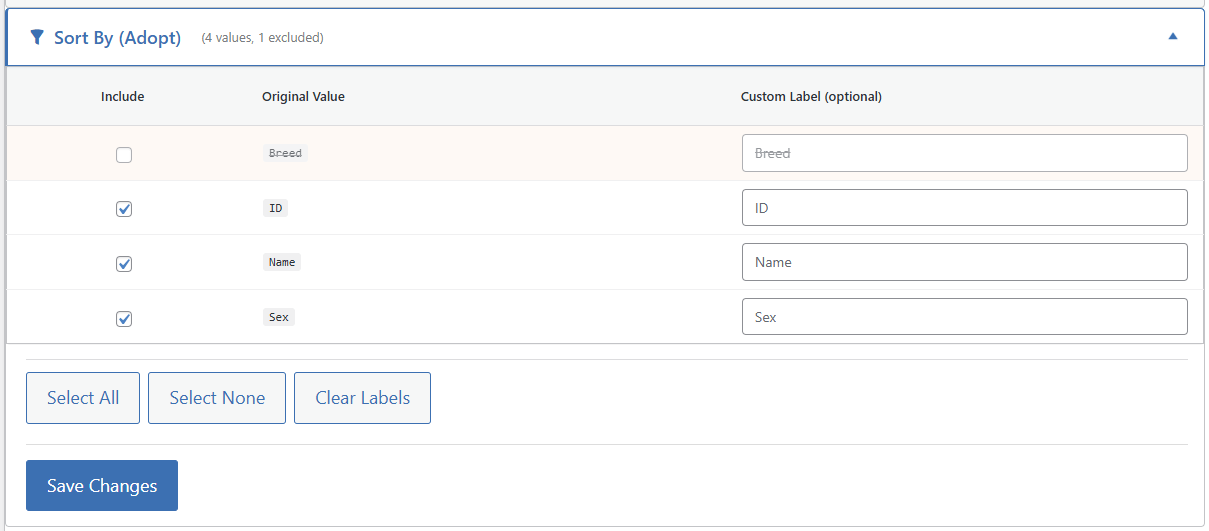
Filter Configuration #

Which filters are available depends on your integration partner and the fields they support. Configure filters in the Filter tab of PetMatchPro admin settings.

For more on configuring filters, see Setting Up Search Filters.

Button Consistency #

When client-side features are enabled, filter dropdowns and sort buttons appear with different visual styles by default. The Button Consistency option lets you style the filter dropdowns to match the sort buttons for a unified look.

Enabling via Shortcode #

[pmp-search type="adopt" client="enable" button_consistency="enable"]

Enabling via Admin Settings #

  1. Go to PetMatchPro > General Options > Performance.
  2. Check Enable Client-Side Features (required).
  3. Check Enable Search Button Consistency.
  4. Click Apply Changes.

The shortcode parameter takes priority over the admin setting. If not specified in either location, the default behavior is disabled (filter dropdowns retain their original styling).

Next Steps #

  • Setting Up Search Filters — Configure filter options
  • Species & Breed Filtering — Species and breed filter details
  • Partner-Specific Filter Options — Filters available per partner
Search Filter Button ultima modifica: 2026-03-24T13:46:14-04:00 da PetMatchPro
Updated on April 9, 2026

What are your Feelings

  • Happy
  • Normal
  • Sad

Share This Article :

  • Facebook
  • X
  • LinkedIn
  • Pinterest
Excluding ValuesDetail Button Hover Text

Submit a Comment Cancel reply

Your email address will not be published. Required fields are marked *

Table of Contents
  • Search Filter Button
    • Enabling Search Filters
    • How the Filter Form Works
    • Anchor Scrolling
    • Filter Widget Templates
    • Filter Configuration
    • Button Consistency
      • Enabling via Shortcode
      • Enabling via Admin Settings
    • Next Steps

© Copyright 2018-2026 by PetMatchPro, All Rights Reserved

  • Privacy Policy
  • Terms of Use
  • Disclaimer
  • Login